


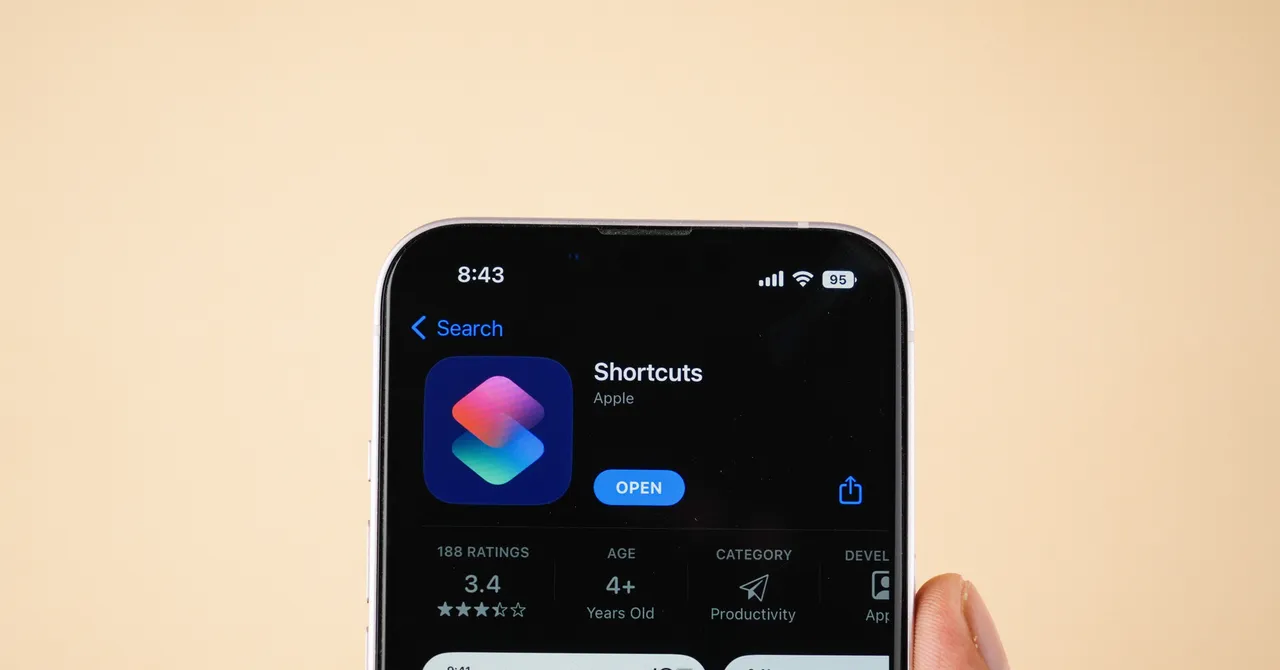
I’ve never used it Despite owning an iPhone for years, I had never used Apple’s built-in Shortcuts app. Automating repetitive tasks sounded useful, but the scripts required to connect different actions felt intimidating when I first opened the app. My experience with the iOS 27 beta changed that perspective completely. What once seemed complicated and easy to ignore now feels streamlined, practical, and essential.
When iOS 27 launches this fall, Siri AI improvements and the addition of a standalone app may be the most noticeable changes for many users. However, Apple Intelligence integration makes the Shortcuts app the real surprise. The update turns shortcut creation from a technical task into a conversational experience.
The new feature, called “Describe a Shortcut,” lets you explain what you want your iPhone to do in everyday language. The app then generates an automation for you, and you can refine it with follow-up prompts. Manual scripting tools remain available for advanced users. Because I tested the feature on the iOS 27 beta, I encountered a few glitches and incomplete automations. Even so, creating shortcuts with natural-language prompts was surprisingly fun. After a few attempts, I built several automations that fit naturally into my daily iPhone routine.
Photo: Courtesy of Reece Rogers
Here are several useful iPhone shortcut ideas to try after downloading and installing iOS 27. These examples only scratch the surface of what Apple Shortcuts can do, but they may inspire automations tailored to your own routines.
Break the Social Media Scrolling Habit
This is the simplest automation I created, but it is already my favorite. I often scroll through my phone without thinking. When I close Instagram to focus on something else, I sometimes reopen it moments later out of habit.
I asked the Shortcuts app to create an automation that runs whenever I open Instagram. A notification asks whether I am sure I want to use the app. If I select yes, Instagram opens normally. If I select no, the iPhone closes Instagram and locks the screen. This is not a complete solution for reducing screen time, but the small interruption helps me recognize and break the cycle of repetitive scrolling.
Check Local Air Quality Automatically
Because I live in California, I check the air quality in my neighborhood before leaving home to decide whether I need to bring a mask. Instead of checking the Air Quality Index manually, I created a shortcut that runs every morning at 6:40 a.m.
The automation checks the current weather and Air Quality Index, then sends a notification based on the results. If pollution exceeds a chosen threshold, the iPhone displays a warning. If the air quality is acceptable, it sends an all-clear message.

Photo: Courtesy of Reece Rogers
Get a Low-Battery Reminder Before Leaving Home
You can also trigger an iPhone shortcut based on your location. I prefer to leave home with a charged phone, but it is easy to forget to check the battery before heading out.
To solve that problem, I created an automation that runs whenever I leave my home. It checks the iPhone’s current battery level and sends a notification reminding me to bring a power bank if the charge is below 50 percent. It is much better to grab a portable charger before leaving than to discover several miles from home that your phone may soon run out of power.
Create a Plant-Watering Reminder
The next two automations show how to add an iPhone shortcut to the Home Screen and connect multiple shortcuts. Many apps can track plant care, but I wanted to see whether Apple Shortcuts could handle the job.
First, I created a shortcut that records the current date and time whenever it runs, then adds that information to a dedicated plant-watering note. After selecting Add to Home Screen from the shortcut’s menu, I can log each watering session by tapping the shortcut’s icon.
I then created a second automation that runs every morning at 9 a.m. It checks the plant-watering note to see whether it has been updated within the past week. If no new entry appears, the iPhone sends a reminder to check the plants.
Extract Text From Screenshots
This automation is more specialized, but it is extremely useful for anyone who frequently takes screenshots. Whenever I capture a screenshot, the iPhone automatically extracts the text from the image and copies it to the clipboard.
That eliminates several manual steps, including saving the screenshot, opening the Photos app, using the text-recognition feature, and copying the content. It is a small shortcut, but it makes copying text from images much faster.
Send a “Just Landed” Message
This simple automation makes travel a little easier. I often fly with my partner and occasionally forget to send an update after landing. I created a shortcut that automatically sends a “just landed” text message whenever I turn off Airplane Mode.
During setup, the Shortcuts app asked me to select the iPhone contact who should receive the message. It is a straightforward automation, but it solves a common problem: remembering to communicate while distracted in a busy airport.
Pause Media When Your iPhone Hears a Doorbell
This shortcut requires a few Accessibility settings, but it is worth the extra setup. I often wear headphones while working from home, and loud music can make it difficult to hear someone knocking or ringing the doorbell.
Open Accessibility in Settings and find Sound Recognition. There, you can enable recognition for sounds such as broken glass, a baby crying, a doorbell, or a door knock. I selected doorbell and door knock.
Because I do not always have my iPhone nearby when wearing headphones, standard notifications are easy to miss. I improved the feature by creating a shortcut that pauses whatever is playing when the iPhone recognizes either sound. Now I can listen to podcasts without worrying about missing a package delivery or someone at the door.
Source: www.wired.com