

Paperman Makes Your Computer Screen Look and Feel More Like Paper
That’s what technology is all about. Screens can feel sterile when every device presents information on the same glossy surface. Paperman offers a simple change of pace: a paper-texture overlay that adds warmth and character to your computer screen.
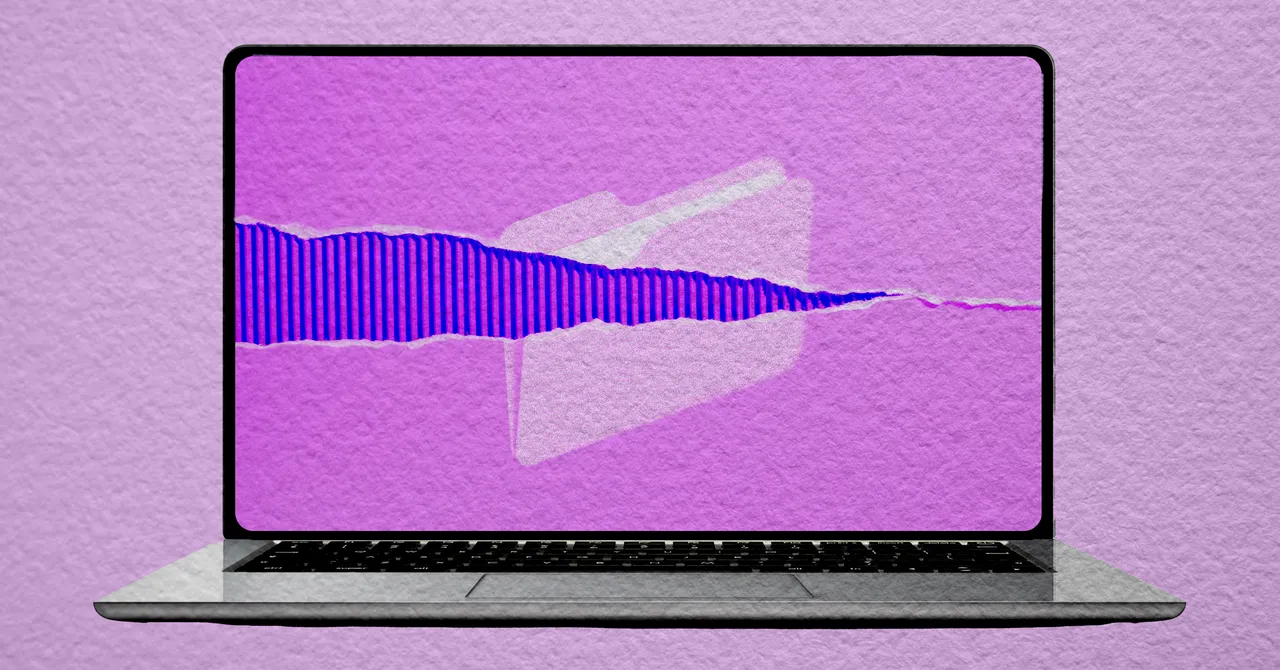
Developed by Finnish studio DoublOne, Paperman makes everything on your display look as though it has been printed on paper. The app adds a customizable texture overlay to whatever appears on your screen. I’m typing this on a MacBook, and the entire display looks like fancy stationery.
How Paperman’s paper-texture screen filter works
Fans of old video games may be familiar with CRT filters, which recreate the look of vintage convex displays. Paperman takes a similar approach, but imitates paper rather than a retro television. Open the app, select a paper type, and the texture covers your display.
The goal is to help users focus on their work and make the screen more comfortable to look at. The developers have collected a substantial amount of academic research on the subject. Paperman’s research page features studies suggesting that matte surfaces and paper textures may help with visual fatigue. Whether a virtual matte or paper layer can provide the same benefit on a screen remains an open question.
Provided by Justin Potts
Can a paper texture make screens easier to read?
Zoe Kilpelty, one half of the two-person DoublOne studio that developed the app, says she isn’t sure. “A lot of that research looks at why reading on physical paper is so comforting,” she told WIRED. “That texture disperses harsh light and softens sharp edges. Modern displays are the opposite: very uniform, razor-sharp grids of backlight.” Paperman’s filters are designed to disrupt that uniformity.
The app offers several textures, ranging from classic matte to tanned parchment. My favorite is the recommended option, Whisper Weave. You can also adjust the strength of the effect, and it’s worth experimenting with that setting.
Best uses and customization options
Paperman works best when reading, writing, or doing other text-focused work. Keep in mind that the texture applies to everything on your screen, including images, videos, and some games. You can configure the app to disable the effect when specific applications are open, which is useful for graphic design, photo viewing, and similar tasks.
If you use multiple monitors, Paperman can apply the texture effect to one display while leaving another unchanged. Customizable keyboard shortcuts also let you turn the effect on and off instantly. Since you’ll need a quick way to disable the overlay, having several control options is a welcome touch.
You can learn more about the app at Paperman.
Source: www.wired.com