


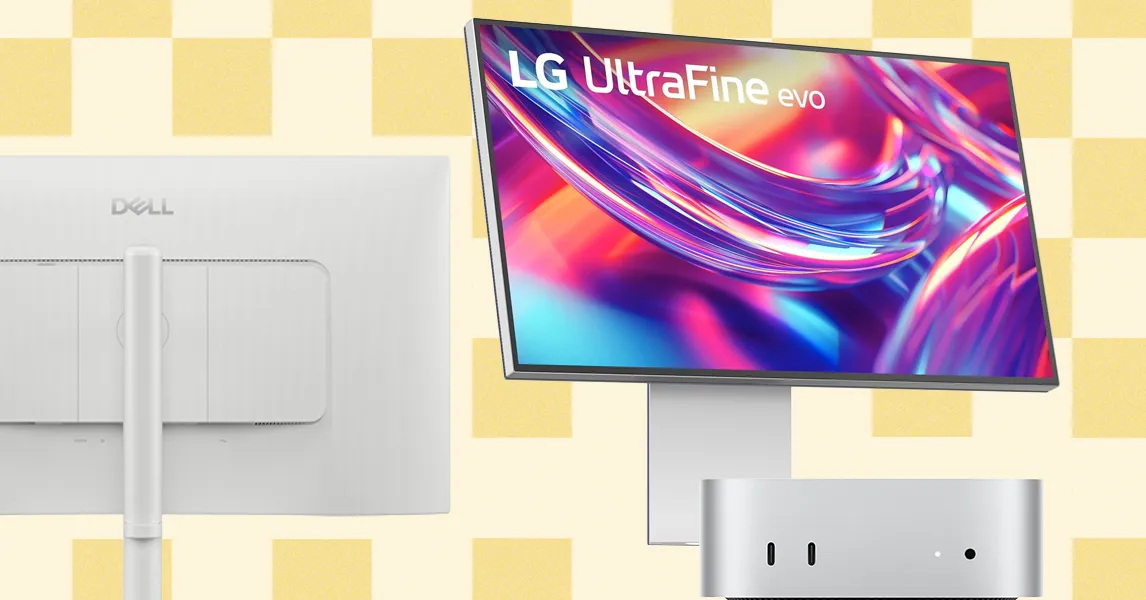
Nearly any modern monitor works with a Mac, so you don’t need an Apple-branded or officially certified display. A budget 1080p monitor may be suitable for basic tasks, but many Mac users prefer a sharper, more premium screen. Fortunately, premium doesn’t always mean expensive, as models such as the Dell 27 Plus 4K demonstrate. To help you choose the best monitor for your Mac, consider these four key factors.
Size and resolution: 27-inch and 32-inch monitors are among the most popular choices, although larger displays and ultrawide models are also available. If you prefer a wider 21:9 aspect ratio and an immersive curved design, consider a 34-inch ultrawide monitor. Resolution is especially important for Mac users because macOS and Apple devices are known for their sharp, high-density displays. A larger monitor needs more pixels to maintain the same level of clarity. For the best results, avoid buying anything below 4K. A 5K or 6K display can be an excellent choice for a 32-inch monitor or professional creative work. Read more about how macOS handles resolution and display scaling. You should also consider refresh rate. MacBook Pro models support refresh rates up to 120Hz, which deliver smoother scrolling, animations, and gaming.
Adjustability: Monitor ergonomics are just as important as image quality. Many Apple displays and iMacs offer limited adjustment options, while models that include premium stands can cost significantly more. For comfortable desk work, the top of the screen should be close to eye level, although the ideal height depends on your posture and build. If your monitor lacks height adjustment, you can use a monitor stand, riser, or arm. Look for a stand that supports height, tilt, swivel, and rotation adjustments. These features are particularly useful when using multiple monitors or positioning a second display vertically for coding, reading, or document editing.
Ports: HDMI is included on most monitors and provides a simple way to connect a display to a Mac mini, Mac Studio, Mac Pro, or MacBook Pro. Some monitors also support video over USB-C, allowing you to connect directly through a Thunderbolt or USB-C port. Check your Mac’s available ports and the monitor’s maximum supported resolution and refresh rate before buying. If you plan to use multiple external monitors, make sure your Mac supports the required number of displays and connections. Extra USB-A and USB-C ports are also useful for connecting accessories, especially with compact Macs that have limited built-in connectivity.
Image quality: Apple devices are known for excellent image quality, so your external monitor should deliver a similarly impressive viewing experience. This is particularly important for photographers, video editors, designers, and other content creators. Compare specifications such as brightness, color accuracy, color gamut, contrast, and HDR support. IPS monitors can offer accurate colors and wide viewing angles, while mini-LED and OLED displays typically provide deeper blacks, higher contrast, and greater brightness. A high-quality HDR monitor can make games, movies, and creative projects look more vibrant and detailed.
Source: www.wired.com