


Other Laptop Docking Stations to Consider
After testing dozens of laptop docking stations, we’ve found that most models are merely adequate. The best dock depends on your laptop, monitor setup, operating system, connectivity needs, and budget. Even if the models above do not match your requirements, these alternative laptop docks are worth considering for home offices, creative workstations, travel, gaming, and multi-monitor setups.
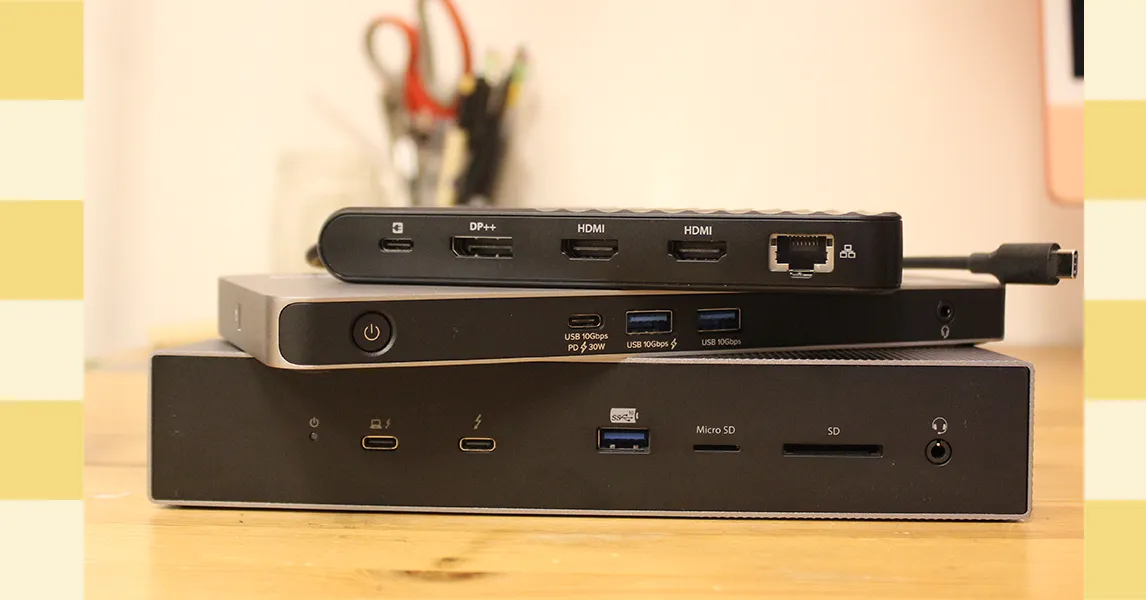
Photo: Luke Larsen
Baseus Spacemate Air 12-in-1 Mac Docking Station, $200: This is an excellent budget alternative to the Plugable 5-Display USB-C Dock. The Baseus Spacemate Air supports two 4K displays and offers a convenient way to connect monitors, storage drives, and other peripherals through one USB-C cable. It is particularly useful for owners of older MacBook Air models who need additional display support. However, the integrated cable limits flexibility, there are no card readers, and several USB ports use slower transfer speeds.
Belkin Connect Pro Thunderbolt 4 Dock, $300: Belkin’s Thunderbolt 4 dock is relatively expensive, but it includes 12 ports, supports up to two 4K displays at 60 Hz, and delivers up to 90 watts of power to a connected laptop. It is a strong choice for a professional desk setup, although some of its USB-A ports are slower than those found on competing Thunderbolt docks.
Satechi Thunderbolt 4 Slim Pro Hub, $200: Sometimes a compact Thunderbolt 4 hub is all you need. Satechi’s aluminum Slim Pro Hub has three Thunderbolt 4 ports on the back, each supporting data speeds of up to 40 Gbps. Its streamlined design keeps cables organized and reduces desktop clutter. It is ideal for connecting a small number of monitors or high-speed external drives, but it does not include the broader selection of ports found on a full-size docking station. —Eric Ravenscraft

Satechi Triple 4K Docking Station, $300: This Satechi docking station can run three 4K monitors at 60 Hz. The first display connects through HDMI, while the other two outputs support either HDMI or DisplayPort. It is a capable option for office productivity, photo editing, and media work, although it does not support the high refresh rates preferred for gaming. —Eric Ravenscraft
Kensington Triple Video Mobile Dock, $90: This compact mobile docking station can power three 1080p monitors or two 4K displays at 60 Hz using its HDMI and DisplayPort connections. It also provides 85 watts of USB-C pass-through charging, which is enough for most laptops. The main limitation is platform compatibility: dual-4K display support works only with Windows systems, while MacBooks are limited to one 4K monitor.
Satechi Dual Docking Station and Stand, $170: Satechi’s dual docking station combines a laptop stand with a desktop dock. It raises your laptop to a more comfortable viewing angle and keeps the connected cables behind the computer. The dock includes three USB ports, three display outputs, and a hardware power switch. Its built-in NVMe enclosure also lets you add your own SSD for extra storage or convenient file transfers, although the drive is not included. —Eric Ravenscraft

Sonnet Echo 13 Thunderbolt 5 Dock, $460: Sonnet’s Echo 13 was among the first Thunderbolt 5 docking stations available. It includes a wide range of ports and an integrated M.2 storage slot with a built-in Kingston SSD. The integrated storage is convenient, but users cannot access or replace the drive. The plastic enclosure also feels underwhelming for such an expensive dock.
Ivanky FusionDock Max 1 Thunderbolt 4 Docking Station, $330: The Ivanky FusionDock Max 1 is a premium MacBook Pro docking station designed for demanding creative workflows. It can support up to four 6K displays on compatible MacBook Pro models and uses four Thunderbolt 4 ports with speeds of up to 40 Gbps each. It is an impressive choice for building a high-performance media workstation, but the price is difficult to justify for casual users. —Eric Ravenscraft
Ugreen Revodok Max 213 Thunderbolt 4 Dock, $300: Most people do not need an 8K display, but Ugreen’s Revodok Max 213 is built for users who do. Its DisplayPort 1.4 connection supports up to 8K resolution at 30 Hz, while the dock also includes an upstream Thunderbolt 4 port and two downstream Thunderbolt 4 ports. It is a strong choice for high-resolution displays, fast external storage, and demanding media-transfer workflows. —Eric Ravenscraft
Do you need a docking station or a USB hub?
A USB hub is usually enough if you simply need to add a few ports to a laptop. For example, a MacBook Air owner might use a USB-C hub to connect USB-A accessories, an HDMI monitor, an SD card, or other portable devices. USB hubs are small, travel-friendly, and generally less expensive than full-size docking stations.
Laptop docking stations are designed for permanent desk setups. They connect multiple monitors, storage devices, networking accessories, and other peripherals to your laptop through one USB-C or Thunderbolt cable. Docks typically provide more ports, faster transfer speeds, stronger display support, and laptop charging, but they are larger and more expensive.
The difference is becoming less clear as compact docks add multi-monitor support. However, a full docking station remains the better choice for a dedicated workstation with several monitors and accessories.
What ports should a laptop docking station have?
Choosing the right laptop dock can be confusing because USB naming conventions are inconsistent. Focus on the actual transfer speeds and display specifications rather than relying only on USB version numbers.
Check port speeds. USB 3.0, USB 3.1, and USB 3.2 labels can refer to different performance levels. When possible, choose docks that list speeds directly, such as 5 Gbps, 10 Gbps, or 20 Gbps. Use the fastest ports for external SSDs and other data-intensive devices, and reserve slower ports for keyboards, mice, and basic accessories.
Choose Thunderbolt for high-performance setups. Thunderbolt uses the USB-C connector but supports faster data transfers and more capable display connections. It is useful for moving large video files, connecting 4K or 8K monitors, and using high-refresh-rate displays.
Review charging power. Most docking stations support USB Power Delivery, also known as USB-PD or pass-through charging. Check the dock’s wattage to make sure it can adequately charge your laptop and connected accessories.
Understand upstream and downstream ports. An upstream port connects the dock to the laptop or computer. Downstream ports connect accessories such as monitors, keyboards, external drives, and other peripherals to the dock.
Are laptop docking stations compatible with Mac and Windows?
Most docks in our recommendations work with both Mac and Windows laptops. However, macOS can impose limitations on external displays. Some docks support extended displays on Windows but only mirror the same image across multiple monitors on a Mac.
Entry-level MacBook models may also support fewer external displays than Windows laptops or higher-end MacBook Pro systems. A DisplayLink-compatible dock can work around some of these limits by using software to create virtual display outputs. In our experience, DisplayLink may introduce latency and performance issues, so it is best treated as a workaround rather than a perfect solution.
Is Thunderbolt 5 worth buying?
Thunderbolt 5 laptops, docks, and accessories began arriving in 2024. The standard can support three 4K displays at 144 Hz, two 4K displays at 240 Hz, and up to 240 watts of power—substantial improvements over Thunderbolt 4’s 100-watt power limit.
Thunderbolt 5 is especially useful for powerful gaming laptops, professional video-editing systems, and high-end MacBook Pro models. Thunderbolt 5 docks are backward compatible, so they can work with older Thunderbolt and USB-C accessories.
However, you need a Thunderbolt 5 laptop and compatible peripherals to benefit from its full performance. Thunderbolt 5 accessories, including high-speed SSDs, are still limited, and newer docks can cost more. For many users, Thunderbolt 4 remains the better value, although a Thunderbolt 5 dock may be worthwhile if you need advanced display support or higher power delivery. For example, CalDigit’s TS5 costs only slightly more than the TS4.
Power up with unlimited access to WIRED. Get expert technology reviews and in-depth reporting for just $2 per month for one year. Your subscription includes unlimited digital access and exclusive subscriber content.
Source: www.wired.com