


Article written by Vakaris Noreika, Vice President of Product Research and Development, NordLayer
Personal ChatGPT at Work: How Security Teams Should Respond
It’s Monday morning, and you’re responsible for security at your organization. Suddenly, your security tools flag employees using personal ChatGPT accounts on managed laptops—even though the organization already pays for ChatGPT Enterprise.
Your first question is likely: What are employees submitting to ChatGPT?
It could be something harmless, such as a published job description. It could also be a customer ticket containing contact information and internal account details. If you’re the acting director of CISA, it could even involve classified government documents, as reported by Politico.
This article follows two versions of the same hypothetical incident. In the first, security tools detect personal ChatGPT usage but cannot inspect the prompt. In the second, NordLayer AI Scout is deployed to managed browsers with a custom detector set to Block for a customer account number format.
What should you do next?
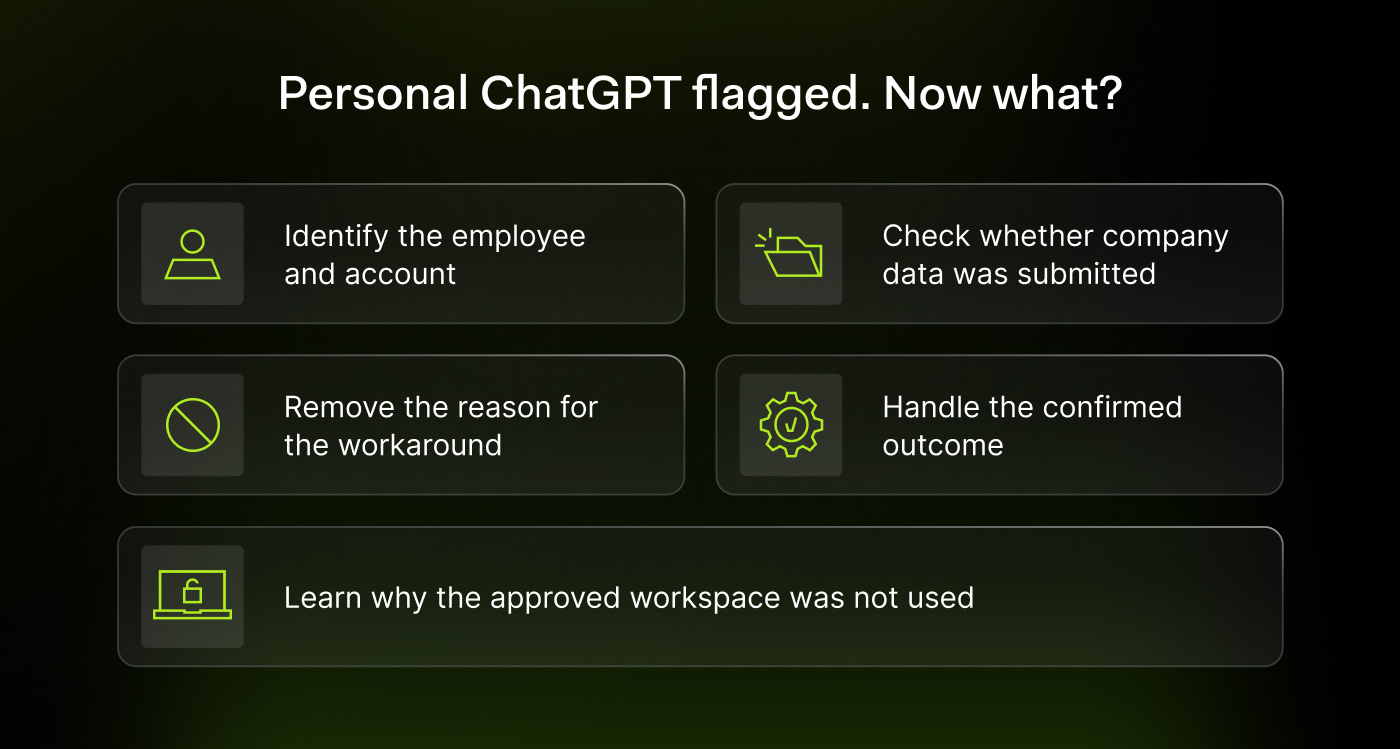
1. Verify the ChatGPT account and employee involved
Start with the basics. Open the security events associated with personal ChatGPT usage and determine which account belongs to which employee.
An employee may sign in to your security tools with a corporate email address while using a personal Gmail account to access ChatGPT. That creates one person, two identities, and one awkward conversation.
With NordLayer AI Scout, the signed-in ChatGPT account appears alongside the conversation. The tool can also classify new ChatGPT conversations as personal or corporate.
Activities are associated with individuals through work email addresses that mobile device management tools push to devices. Directory synchronization with Entra ID, Okta, or HiBob can add department, team, and role information.
2. Determine what information was sent to ChatGPT
In the first scenario, the retained event shows that an employee used a personal account. However, it does not contain the prompt text or identify sensitive data, so you cannot reconstruct the submission from the event alone.
The incident review process may require asking the employee to inspect their ChatGPT conversations. To avoid reviewing unrelated personal content, limit the request to work-related activity around the relevant timestamp.
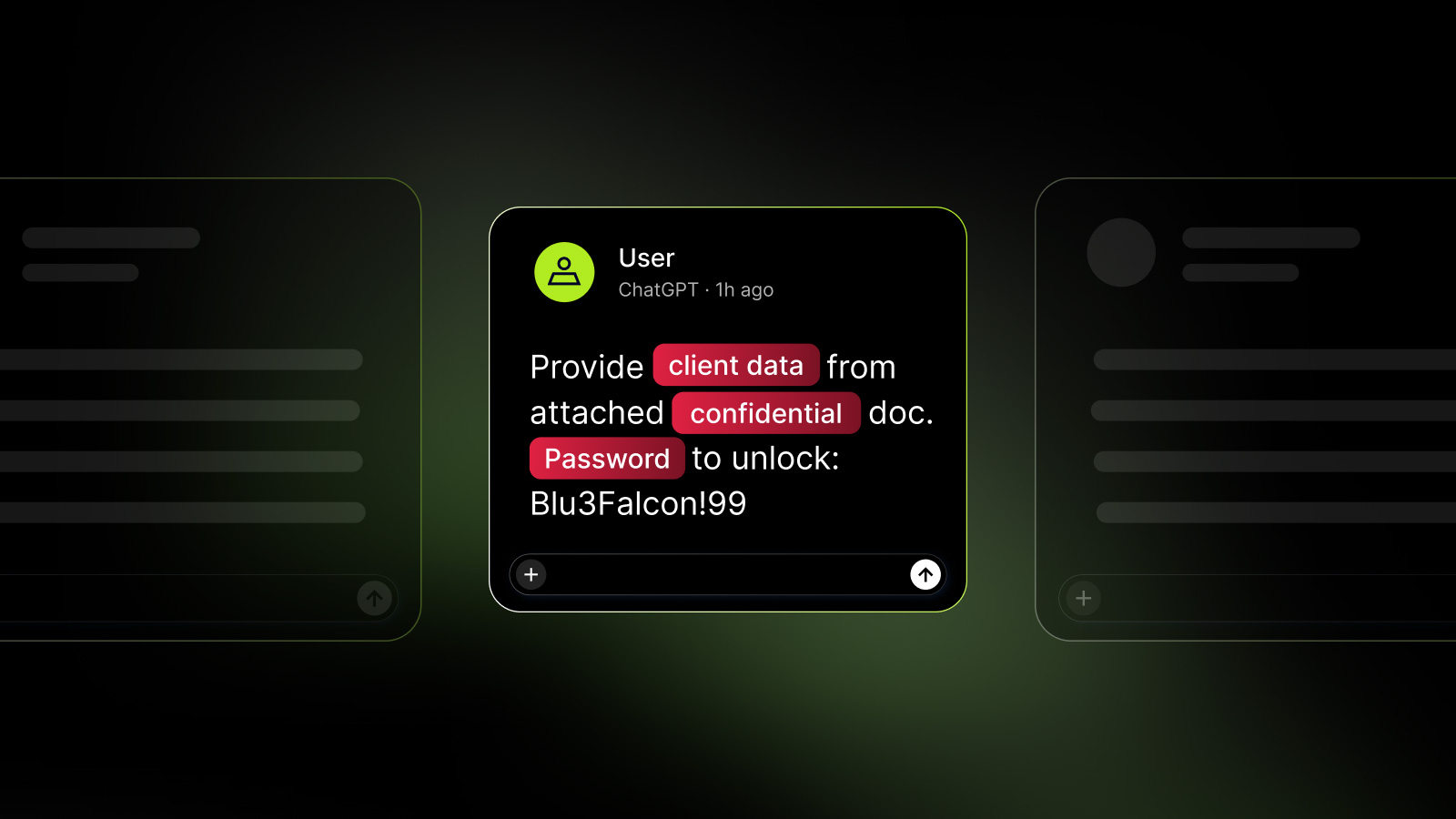
For example, an employee may have pasted a customer support ticket into a prompt and asked ChatGPT to draft a response explaining why the customer could not access an account. If the ticket and response are present in the conversation, you have evidence that customer information reached the service.
With NordLayer AI Scout, you can open blocked findings instead. The browser extension checks prompts on the device before they are sent. When a configured detector matches customer data, the Block action stops the transmission.
The employee sees a notification explaining that the prompt was blocked. The security team does not need to read the prompt for the control to work.
Gain a clearer picture of how employees use AI tools and coding agents across your organization, including applications operating outside your approved-tool list.
Try NordLayer AI Scout for 30 days and improve visibility into AI activity.
3. Find out why corporate ChatGPT access was not used
In many cases, the explanation is ordinary. The employee’s corporate session expired, two-factor authentication took too long, a customer needed an immediate response, or a personal ChatGPT tab was already open and signed in.
The employee may explain that they pasted the customer support conversation into their personal chat, entered a request such as “Draft an answer explaining why this customer can’t access their account,” and clicked Send.
Without a prompt-blocking rule, the information reached ChatGPT. The next step is to determine whether this was an isolated event or part of a recurring pattern.
Without NordLayer AI Scout, you may need to rely on the employee’s recollection. Ask whether they have previously pasted complete tickets, uploaded attachments, created shared conversation links, or used a personal ChatGPT account as a fallback whenever their corporate session expired.
Review the employee’s understanding of the policy as well. Someone may remember that ChatGPT is authorized but misunderstand which workspace, account, and data types the policy allows.
4. Respond based on the data that was exposed
Without dedicated prompt-level controls, customer data may remain in completed conversations within personal ChatGPT accounts. Preserve the necessary evidence and involve the incident owner, privacy team, or data protection team as appropriate.
Assess the seriousness of the incident based on what was shared. If credentials were exposed, revoke or rotate them. If customer records were involved, the organization may need to conduct a privacy assessment. If the employee pasted only public text, there may be no data incident, although it may still be useful to discuss the organization’s paid Enterprise seats.
Keep the assessment accurate. Using a personal account does not, by itself, prove that the prompt entered the model’s training, was published, or was shown to another user.
However, confirming that company data was entered into a service through an unauthorized account is serious enough to require a documented response.
With NordLayer AI Scout, the record can show that a configured rule blocked the submission. This indicates both an attempted policy violation and the control that prevented it. Any earlier use of a personal account should still be evaluated on a case-by-case basis.
5. Improve the workflow before closing the incident
Help the employee complete two-factor authentication and verify that the corporate workspace works. Ask them to sign in to the Enterprise workspace and complete support tasks there.
However, an Enterprise subscription does not mean employees may send any type of information. Confirm that the task and the data are permitted under your organization’s policies.
For the first scenario, review the limits and applicable data loss prevention rules for personal ChatGPT instances. For the second, check the browser extension’s prompt policy in NordLayer AI Scout.
The available actions serve different purposes:
- Warn: Pauses the send and gives the employee the option to continue or return and edit the prompt.
- Edit: Removes matched values and submits the remaining text.
- Block: Prevents the prompt from being sent.
Choose the action that fits each data category and its associated risk.
Before closing the incident, document the account, device, information that was verified, whether the prompt was sent, and who owns the response. Record any access changes and schedule follow-up checks for recurring events.
Personal ChatGPT use requires visibility and clear controls
In one version of this scenario, customer data reached a personal ChatGPT account and required an exposure assessment. In the other, a configured detector blocked the prompt before it left the device.
Both scenarios highlight the same operational need: employees require reliable corporate access to approved AI tools, especially on Monday mornings. Without that access, a personal account can quickly become a workaround.
About the author
Vakaris Noreika, Vice President of Product Research and Development, is a cybersecurity expert who oversees the development of business security products at NordLayer, a switchable network security platform for enterprises. He has years of experience in threat intelligence, network security, data privacy, and automated monitoring. He focuses on controls that reduce exposure without creating unnecessary operational overhead.
Sponsored and written by NordLayer AI Scout.
Source: www.bleepingcomputer.com