



Microsoft Investigates Missing Copilot Buttons in Classic Outlook for Windows
Microsoft is investigating a known issue that causes the Copilot and Copilot Chat buttons to disappear from classic Outlook for Windows for some users.
The issue affects customers with a Copilot Chat (Basic) license or a paid Microsoft 365 Copilot (Premium) account. For affected users, the Copilot button may disappear from the Outlook side navigation pane and from the area above the ribbon.
Copilot buttons disappear after an Outlook update
Microsoft previously acknowledged the issue while announcing a fix for a related service change in June. In a recent update, the company confirmed that the problem occurs after classic Outlook for Windows is upgraded to build 20026.20182 or later.
Affected users may experience one or more of the following problems:
- The Copilot button no longer appears in the top-right area above the Outlook ribbon.
- The Copilot icon is missing from the left app bar or other areas of classic Outlook.
- Copilot may appear as an available app after selecting Add apps, but nothing happens when users select Open.
- Copilot commands added through ribbon customization may be unavailable or grayed out.
- Copilot remains available through other entry points, including Outlook on the web and the standalone Microsoft 365 Copilot app and web experience.
Microsoft identifies a possible cause
Microsoft said its Outlook team is actively investigating the issue. The company’s current analysis indicates that, in affected environments, Outlook cannot find the MAPI property PR_PROFILE_USER_SMTP_EMAIL_ADDRESS_W in a null profile section.
“The Outlook team is actively investigating this issue. Current analysis indicates that in affected environments, Outlook is unable to find the MAPI property PR_PROFILE_USER_SMTP_EMAIL_ADDRESS_W in a null profile section.”
“As a result, Outlook Copilot components may not be able to persist Copilot-related settings, and Copilot entry points may no longer appear in the Outlook navigation pane.”
Temporary workaround for missing Copilot buttons
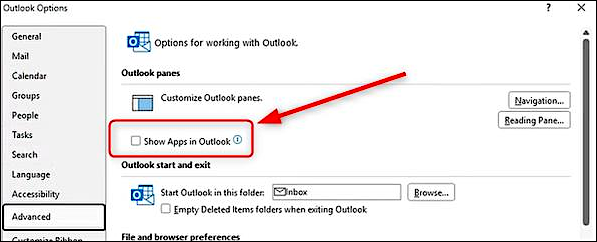
While Microsoft works on a permanent fix, the company has shared a temporary workaround that requires users to enable the Show apps in Outlook option in classic Outlook.
To enable the setting:
- Open classic Outlook and select the File tab.
- Select Options.
- Open Advanced.
- Under Outlook panes, enable Show apps in Outlook.
- Select OK to apply the change.
Users affected by the Copilot issue can also create a new Outlook profile. Alternatively, they can use the new Outlook email client or Outlook on the web, which are not affected by this bug.
Microsoft also investigating Outlook crashes linked to Kaspersky
Microsoft has confirmed another Outlook issue involving systems running Kaspersky Antivirus software. The problem can cause Outlook to crash unexpectedly and trigger an Event 1000 entry in the application log linked to Kaspersky Mail Checker, or mcou.dll.
Microsoft advises Kaspersky customers who experience Outlook crashes to contact Kaspersky support while the Outlook team continues its investigation.
Earlier this year, Microsoft also resolved a known issue in which enabling the Microsoft Teams Meetings Add-in made the classic Outlook client unusable. The problem prevented some classic Outlook users from sending email through Outlook.com.

Join Mikko Hypponen and security leaders from the NFL, Chanel, and Atlassian for a 2-hour digital summit about what will change with AI speed attacks, what defenders should stop doing, and how to verify, decide, fix, and revalidate at machine speed.
Source: www.bleepingcomputer.com